Web Templates Explained: Types, Free Options, and What to Check Before You Download
By Nishant · · 12 min read
Web Templates Explained: Types, Free Options, and What to Check Before You Download
What You Actually Get When You Download a Web Template
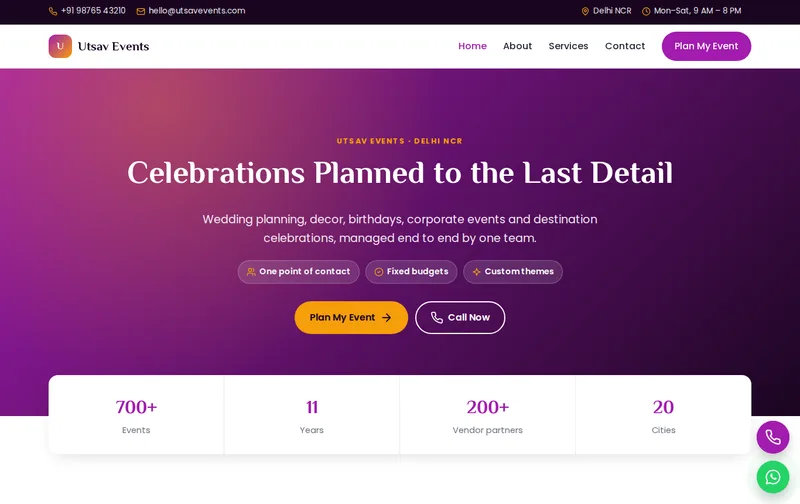
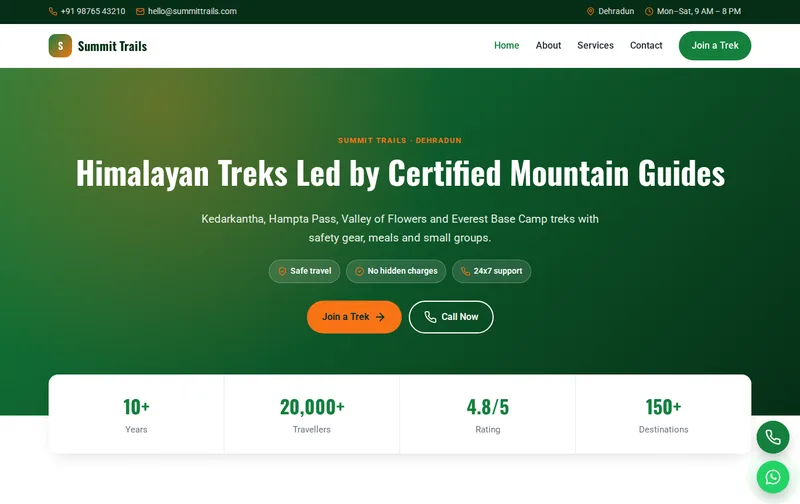
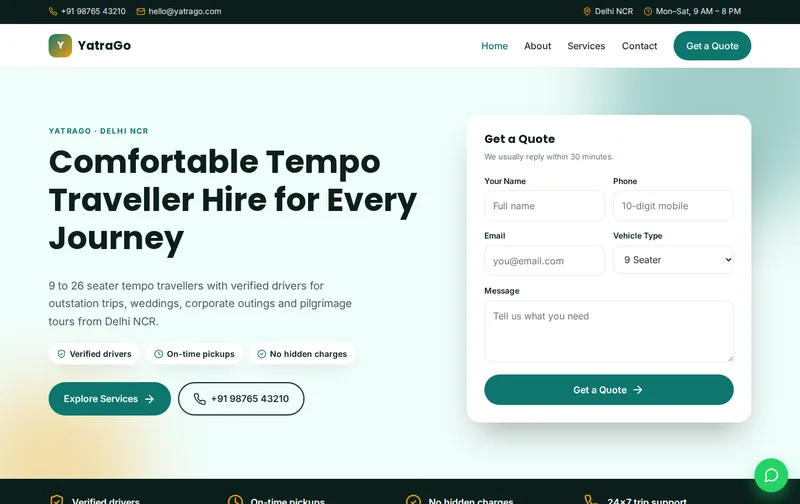
A web template is a ready-made set of HTML, CSS, and usually JavaScript files that give a site its layout and look before any of your own content goes in. Downloading one doesn't hand you a finished website — it hands you a skeleton: an index.html file, a stylesheet, a folder of images, and a bit of JS that runs things like a mobile menu or an image slider.
The “web” in web template traces back to the World Wide Web itself — a system Tim Berners-Lee proposed at CERN in 1989, with the first web server running the following year. Every template you download today still runs on that same core idea: HTML markup for structure, CSS for appearance, served to a browser over HTTP.
For plain HTML templates, that's the whole package — open index.html in a browser and you're looking at the site, no server required. For WordPress, “template” usually means a theme: a PHP-based package installed through wp-admin rather than opened directly. Either way, what you're getting is a starting structure, not a finished product — you still have to drop in your own text, images, and working forms before it's ready to publish.
HTML, WordPress, and Elementor Templates Aren't the Same Thing
These three get lumped together under “web template,” but they work differently enough that picking the wrong one means redoing the setup later.
HTML/CSS templates are raw code — index.html, style.css, a js folder. You edit the text by opening the HTML file itself. There's no database and nothing to install, so pages load fast and hosting is cheap (even free, on something like GitHub Pages). The trade-off: updating content means editing code, which rules this out for anyone who isn't comfortable in a text editor.
WordPress templates (themes) install inside WordPress and hand content editing over to wp-admin — log in, click into a page, change text or swap an image without touching a file. That convenience costs you a PHP + MySQL hosting environment and regular plugin and theme updates to keep the site secure.
Elementor templates are a layer on top of WordPress: a saved page design (a .json layout) imported into the Elementor page builder plugin. You get drag-and-drop visual editing with no code at all, but the page loads Elementor's own CSS and JS on top of your theme's — the most common reason Elementor sites run slower than a plain WordPress theme or a static HTML page.
A single-page portfolio with content that rarely changes fits an HTML template. A business site non-technical staff will update weekly fits WordPress. A site where someone wants to rearrange sections visually without ever opening a code editor fits Elementor.
What “Free” Actually Covers — Read the License Before You Build On It
“Free” on a template download page can mean four different things, and the difference matters the moment the site goes live for a real business.
- MIT or similar open licenses — free for personal and commercial use, no attribution required. Most common on HTML/CSS templates shared through GitHub.
- GPL — the license WordPress core itself uses, so most WordPress themes (including premium ones) are GPL or GPL-compatible, meaning you can legally modify and reuse the code even on a commercial site.
- Creative Commons variants — some require attribution (a visible “Design by…” credit or backlink), some restrict commercial use entirely.
- “Free for personal use” — common on flashier template marketplaces. The download works, but the license file explicitly blocks using it on a site that generates revenue; a business site needs the paid tier.
Before building anything on a free download, open the license.txt or README in the zip and check it directly rather than assuming. Two other things worth checking at the same time: whether the “free” version is actually a stripped demo with the better sections locked behind a paid upgrade, and whether the template's images point to the designer's own CDN — swap those for your own hosted images, or the site breaks the day that CDN link goes down.
Checks That Keep a Template From Wrecking Your Page Speed or SEO
A template can look polished in the live demo and still be a bad foundation for SEO and load time. Run these checks before committing to one.
- Test the live demo in PageSpeed Insights or GTmetrix, not just by eye. Slider-heavy templates routinely ship 2–5MB hero images with no compression, which alone can push mobile load time past 5 seconds.
- View the page source and check the heading structure. Look for exactly one
<h1>per page and semantic tags (<nav>,<header>,<main>,<footer>) rather than a page built entirely out of generic<div class="col-md-4">blocks — the latter is harder for search engines to parse and worse for screen readers. - Check the CSS framework and its version. A template built on an old, unmaintained Bootstrap or jQuery version is more likely to carry known accessibility and security gaps than one built on a current framework.
- Test responsiveness at 375px width, not just by shrinking the browser window. Some templates billed as “responsive” only have breakpoints down to tablet size and visibly break on an actual phone.
- Open the contact form and submit a test entry. Many free templates wire the form to a placeholder email or nothing at all — you'll need to connect it to a real backend before launch.
Downloading and Setting Up a Template, Step by Step
- Download and extract the zip. For an HTML template, you now have a folder you can preview immediately — double-click index.html or drag it into a browser tab; no server needed yet.
- For a WordPress theme, leave it zipped. In wp-admin go to Appearance → Themes → Add New → Upload Theme, select the zip, then Activate. Install any plugins the theme recommends on activation — most page builders and demo-import tools come as separate required plugins.
- For an Elementor template, import the .json file under Templates → Saved Templates → Import Templates, then insert it on a page and edit it inside the Elementor editor.
- Replace every placeholder. Search the files for “Lorem ipsum” and generic stock image filenames — both are reliable markers of content nobody has touched yet.
- Rebuild the contact form's backend. Point it at a working mail handler — a PHP mail script on your own host, a service like Formspree, or your CMS's native form plugin — since the demo version usually isn't wired to send anywhere.
- Set page titles, meta descriptions, and the favicon per page. Templates leave these as placeholders like “Company Name” or “Page Title Here,” and they won't fix themselves.
What's Actually Inside a Template's Folder
template-folder/
├── index.html
├── about.html
├── contact.html
├── css/
│   ├── style.css
│   └── bootstrap.min.css
├── js/
│   ├── main.js
│   └── bootstrap.bundle.min.js
├── images/
│   └── ...
└── fonts/
index.html and the other .html files are the actual pages — structure and content live here. css/style.css holds the template's own design decisions (colors, spacing, typography), usually layered on top of a framework file like bootstrap.min.css that handles the responsive grid. js/main.js wires up the interactive pieces — the mobile nav toggle, smooth scrolling, a testimonial carousel — while bootstrap.bundle.min.js is the framework's own script dependency. Everything in images/ is linked by relative path from the HTML, which is why moving files around after the fact without updating those paths is the single most common reason a downloaded template “breaks” the first time someone edits it.
Where Free Templates Run Out — and When a Custom Build Is the Better Call
A free template gets a site live fast, but four gaps show up consistently once a real business starts relying on one.
- No real SEO foundation. The design looks finished, but schema markup, Open Graph tags, and a crawlable URL structure are rarely built in — they have to be added afterward.
- The design isn't unique. Search the template's name and you'll usually find dozens of live sites running it with only the logo and colors swapped — a problem for a business trying to stand out from local competitors using the same download.
- No ongoing support. A broken slider script or a security patch for an outdated framework version is entirely on you, or whoever maintains the site, to fix.
- “Working” features are often just demo buttons. Booking calendars, product catalogs, and payment flows that look functional in the preview are frequently static mockups with no logic behind them.
A custom build — plain PHP/MySQL or a properly configured WordPress site, built around what the business actually sells rather than retrofitted onto a generic layout — tends to cost less time in the long run than patching a free template into something that behaves like a real, working site. That's usually the right call once a business needs its own booking or catalog logic, a look that doesn't match ten competitors, or analytics and SEO wired in correctly from the first page rather than bolted on later.
Frequently Asked Questions
Where can I download a web template for free?
Free HTML/CSS templates are widely available on template directories like html5up.net, startbootstrap.com, and colorlib.com, and free WordPress themes are listed directly in the WordPress.org theme repository, which only accepts GPL-licensed themes. If you want something already matched to your business type — a salon, a caterer, a travel agency — and licensed cleanly for commercial use, a curated or custom-built template skips the step of checking each download's license yourself.
Can I find simple HTML and CSS templates with no framework like Bootstrap built in?
Yes — look for templates described as “vanilla CSS” or “no framework,” since most free templates default to Bootstrap or Tailwind to save build time. A no-framework template is usually a smaller download, often under 500KB for the whole package, which also means less unused CSS loading on a simple page.
What makes a template “responsive,” and are free ones actually mobile-friendly?
Responsive means the layout adjusts at defined breakpoints rather than just shrinking everything proportionally — text reflows into a single column, navigation collapses into a hamburger menu, and images resize without overflowing the viewport. Most current free templates handle this correctly, but older ones built before CSS Grid and Flexbox were standard can be the exception, so test at an actual phone width before trusting the label.
Can I get the full source code with a free download, or just a preview?
Most templates listed as downloads (rather than “live demos”) do include the full HTML, CSS, and JS source in the zip — that's the point of a download. It gets murkier on freemium marketplaces, where the free tier gives you the code for a few pages and the rest sit behind a “Buy Pro” button. Check the download page for a page count or file list before assuming you're getting the whole site.
What counts as a “modern” template?
In 2026, “modern” generally means CSS Grid and Flexbox layouts instead of float-based ones, a mobile-first build rather than a desktop design squeezed down, system or variable fonts over a stack of web-font imports, and dark-mode support via a CSS prefers-color-scheme query. A template still leaning on table-based layout tricks or jQuery for basic show/hide behavior is dated, whatever the download page's marketing copy says.
Are free templates good enough for a real business website?
For getting something live fast, yes. For representing a business long-term, usually not on their own — the SEO gaps and lack of a distinct design tend to catch up with a business once the site is doing real work generating leads or sales. A common middle path: launch on a free or low-cost template to validate the business, then move to a custom build once it's proven out.
Where can I find company website templates in HTML and CSS specifically?
“Company” or “corporate” templates are usually tagged that way directly on template marketplaces and typically ship with the standard business page set already laid out — home, about, services, team, contact. Filter by that category rather than searching generically, since a plain “business” tag can also pull in e-commerce or portfolio templates that don't fit a services company.
What's the actual difference between a “free HTML template” and a “free WordPress template”?
A free HTML template is static code you edit directly and can host anywhere, including free static hosts. A free WordPress template is a theme: it needs WordPress installed on PHP/MySQL hosting, but in return gives you an admin dashboard to edit content without opening a code editor. If the plan is to hand the site off to someone non-technical to update, WordPress is the safer choice even though it adds a hosting requirement the HTML version doesn't have.